
Workflows
You cannot tell which security answer is current. Compare current policies with past responses to prepare answers, evidence, and review status. Gather questions that need an owner’s confirmation.
Prepare evidence-backed answers to customer security questionnaires by comparing current policies with past responses.
When this is your problem
A customer asks about encryption, retention, and SSO, but the evidence is scattered across documents. Copying a previous answer can miss changed policies or eligibility rules. Questions without supporting material need a security owner’s confirmation.
Solve it with Specify
- Collect current policies, approved past answers, and the new questionnaire in Specify, with dates for each source.
- Ask AI to compare current evidence and put each answer, source, and review status in one table.
- Review supported answers and gather unresolved questions for the owner before submitting to the customer.
What you get
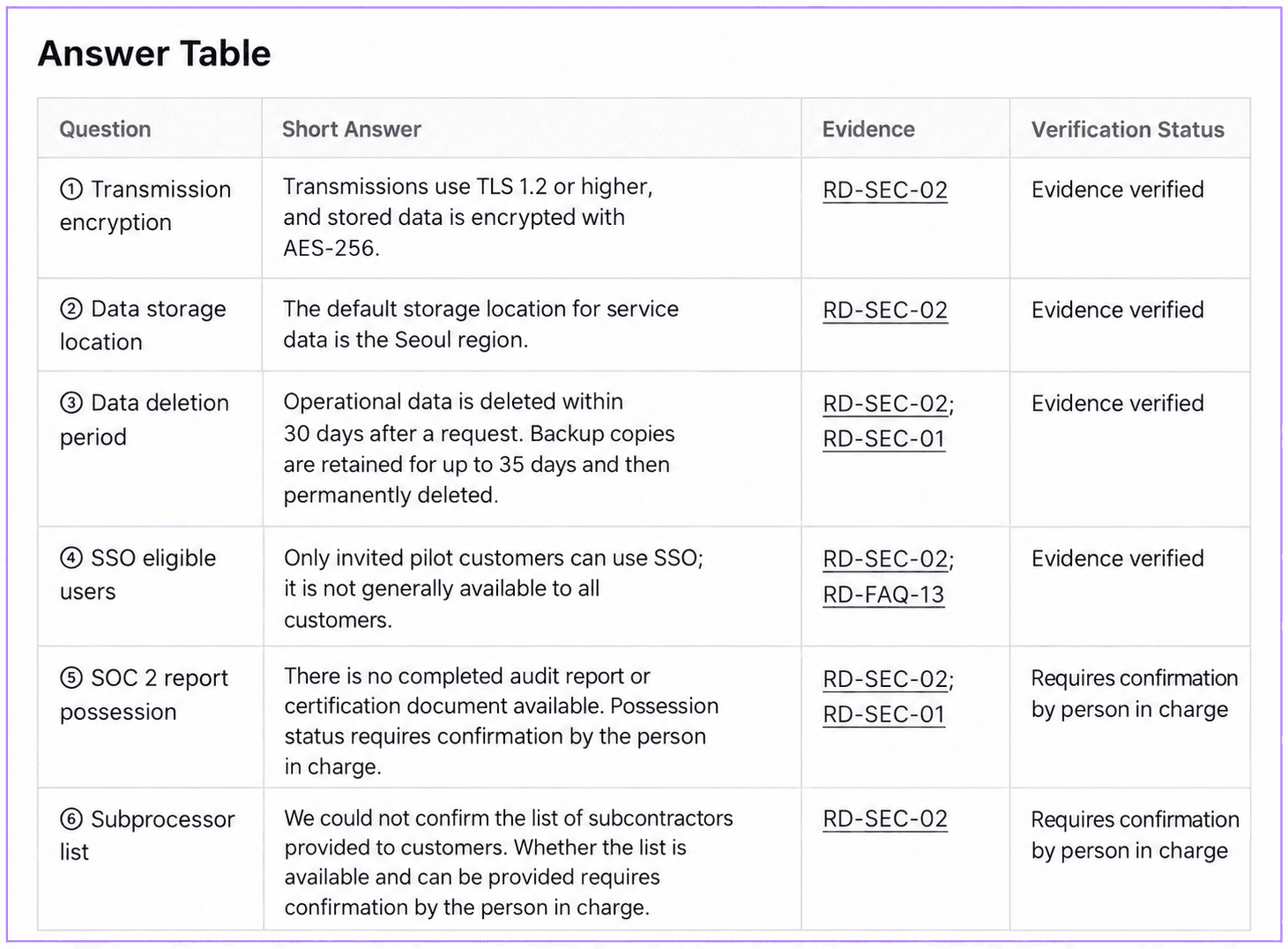
Create a response table for sales, customer-facing teams, and security reviewers. This example was produced in the actual app by reading documents for the fictional RelayDesk Demo. It does not describe Specify's security policies or certification status.
Prepare the materials
Download the example materials and upload the following files to your workspace to try the questions.
| Material | What to check |
|---|---|
relaydesk-security-current.md | Current policy RD-SEC-02 and its effective date |
relaydesk-security-retired.md | Retired response RD-SEC-01 |
relaydesk-faq-before.md | Existing explanation of SSO availability |
For real work, use policies, approved answers, and questionnaires you are authorized to use. Keep the questions separate from their evidence, and record each source's version and scope.
Follow the workflow
Collect the sources in your workspace
Upload files or write workspace documents. Include current or retired status and a document ID in each source.Define the questions in a new chat
Use New Chat to name the product and list the questions. Specify the source scope so other products or outdated answers are not mixed in.Request evidence and confirmation status
Ask for source links, dates, and status alongside the answers. Leave unsupported answers for owner confirmation.Compare the saved draft with its sources
Save the table as a document and check that every question is included. Open its sources and verify that their limits and scope remain intact.
Find and compare RelayDesk Demo's current security policy and previous responses.
Questions: encryption, data location, deletion of operational data and backups,
SSO eligibility, SOC 2 report availability, and the subprocessor list.
Create six rows: question / short answer / source link and ID / confirmation status.
Check dates and current or retired status. Mark unsupported answers for owner confirmation.
Summarize differences from past responses in a short review note.
Save a 'Security questionnaire response draft' document. Do not edit sources or send it externally.
Differences to inspect in this example
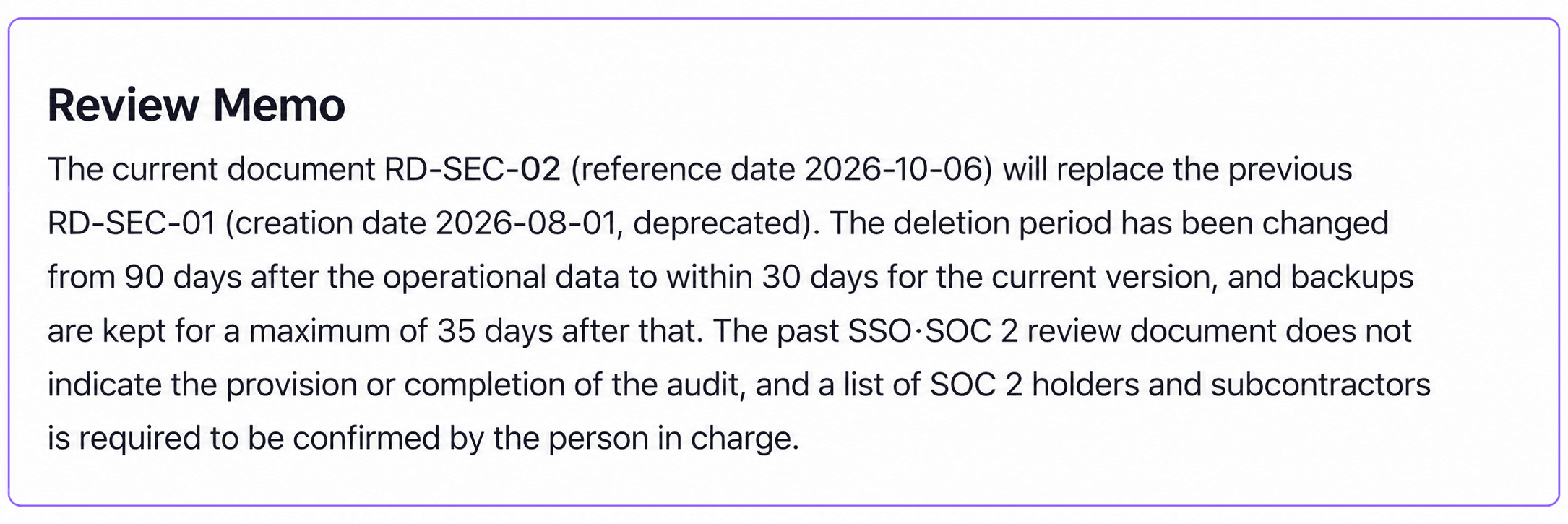
- Separate the old 90-day answer from deletion of operational data within 30 days. Backups have a separate retention cycle of up to 35 days. These are fictional example values.
- Preserve the restriction that SSO is for invited pilot customers only.
- Missing SOC 2 evidence does not establish either certification possession or absence. Do not invent a subprocessor list.
Check search results and submission readiness
This workflow produces a review document. It does not demonstrate filling cells in a customer's Excel template or submitting answers automatically. The responsible person checks evidence and approvals before submission.