
Writing & AI
Get answers in AI chat grounded in your team's docs and code context, and choose a model and reasoning effort.
AI in your IDE knows the code itself well, but it doesn't know why it was built that way. Specify's AI searches the docs, files, and connected sources collected in your workspace and answers based on what it finds.
Start a chat
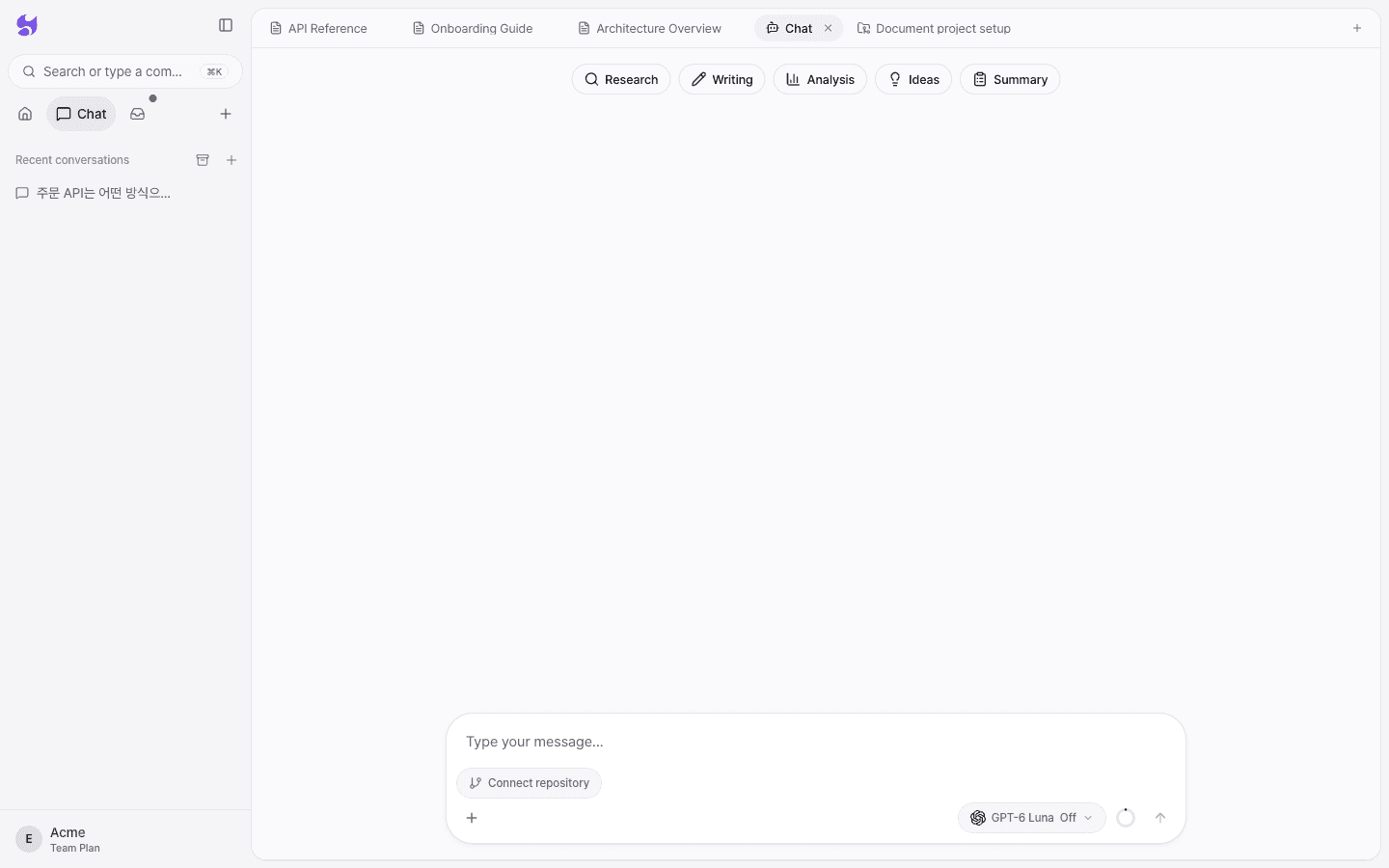
- Select sidebar New (+) → New Chat, or select + under Chat in the sidebar.
- Type your question in the message box and press Enter. To add a line break, press Shift+Enter.
- If you need an example, start with the Research, Writing, Analysis, Ideas, or Summary buttons at the top.
While you edit a document, select the AI button at the bottom right to open the AI panel next to the document.
Answers grounded in your team's materials
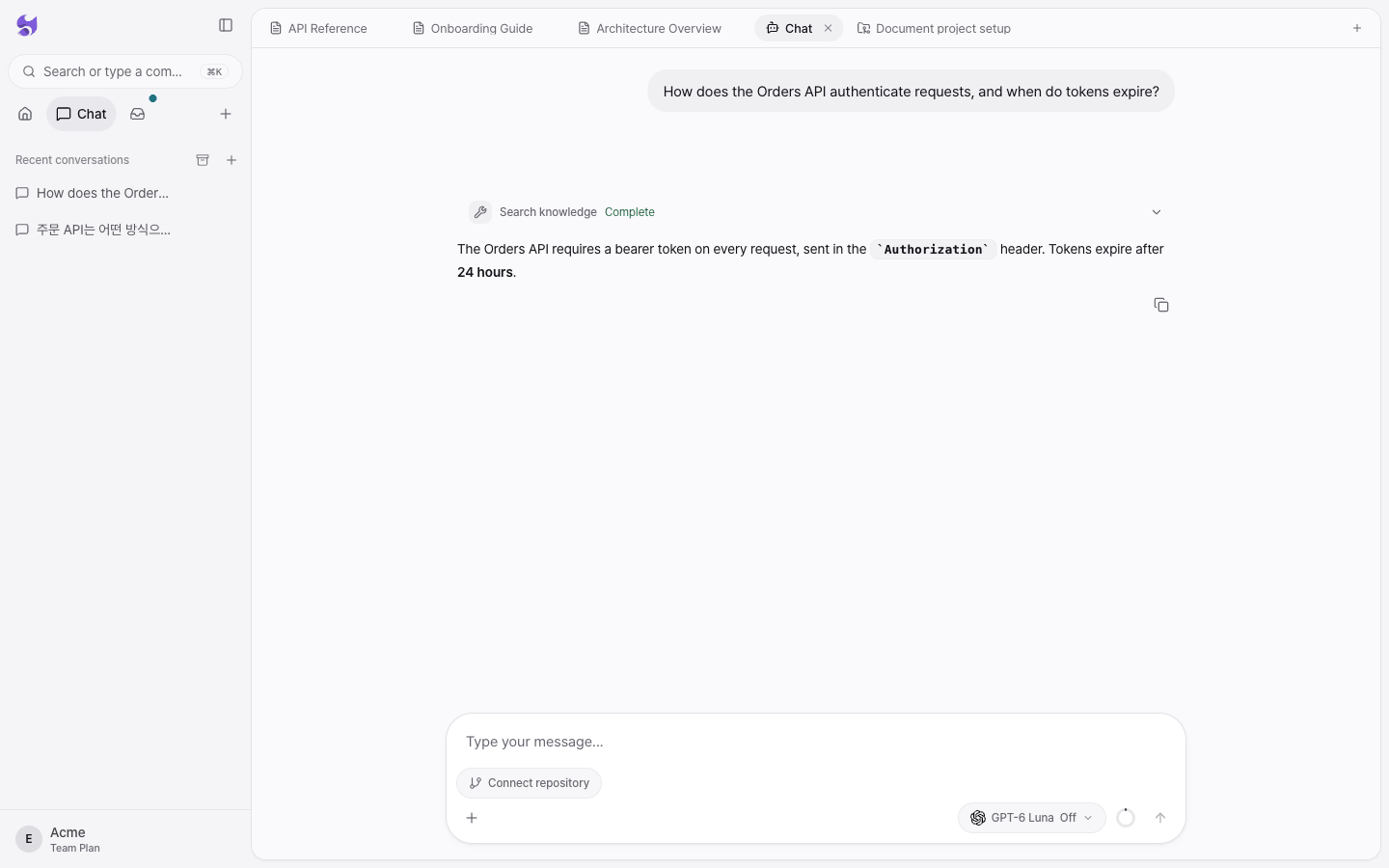
When you ask a question, AI searches the workspace with the Search knowledge tool when it needs to. Links to the documents used as evidence appear below the answer.
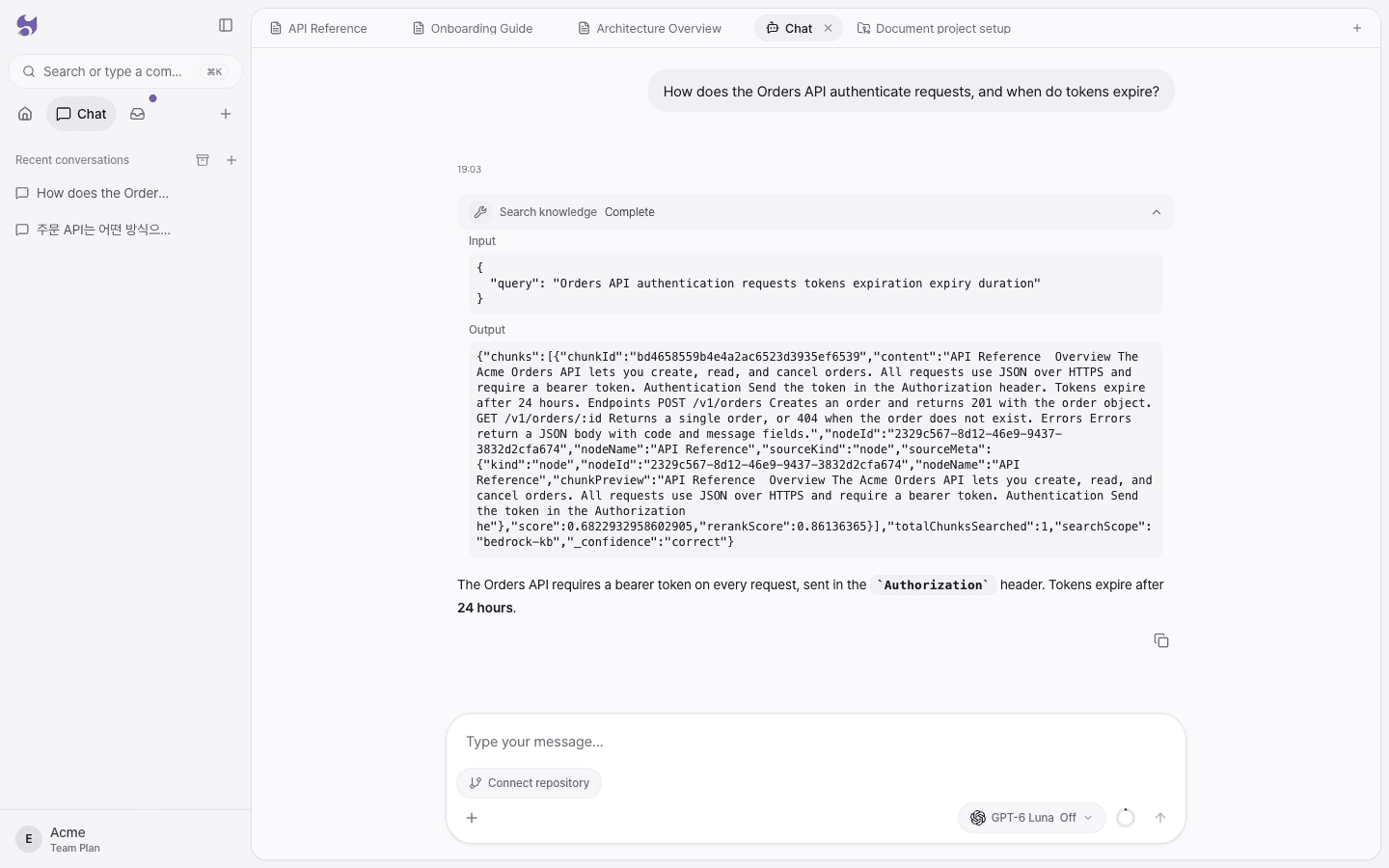
Expand the Search knowledge row to see what search query AI actually used and what it found.
For what gets searched and how it works, see Workspace RAG.
Questions it answers well
| Question type | Example |
|---|---|
| Why | "Why did we move payment retries into a queue?" |
| Where | "Where is the logic that saves notification settings?" |
| How | "What order do we work in when adding a new API endpoint?" |
| Summary | "Summarize the Onboarding Guide in 5 lines for a new developer." |
Get better answers
- Narrow the scope. Including a service name, feature name, or document name makes it easier to find evidence.
- Point to documents. Type
@in the message box to pick an item from Projects or Documents and add it to the conversation. - Connect a repository. Use Connect repository below the message box to connect a GitHub repository to the conversation so AI also references the code context.
- Check the evidence. Before relying on an answer for an important decision, open the documents it was based on yourself.
- Save answers as docs. Writing up answers to recurring questions gives the next question something to draw on.
Choose a model and reasoning effort
Select the model button at the bottom right of the message box to change the model and reasoning effort. The model applies to the whole current conversation and can't be changed while a response is in progress.
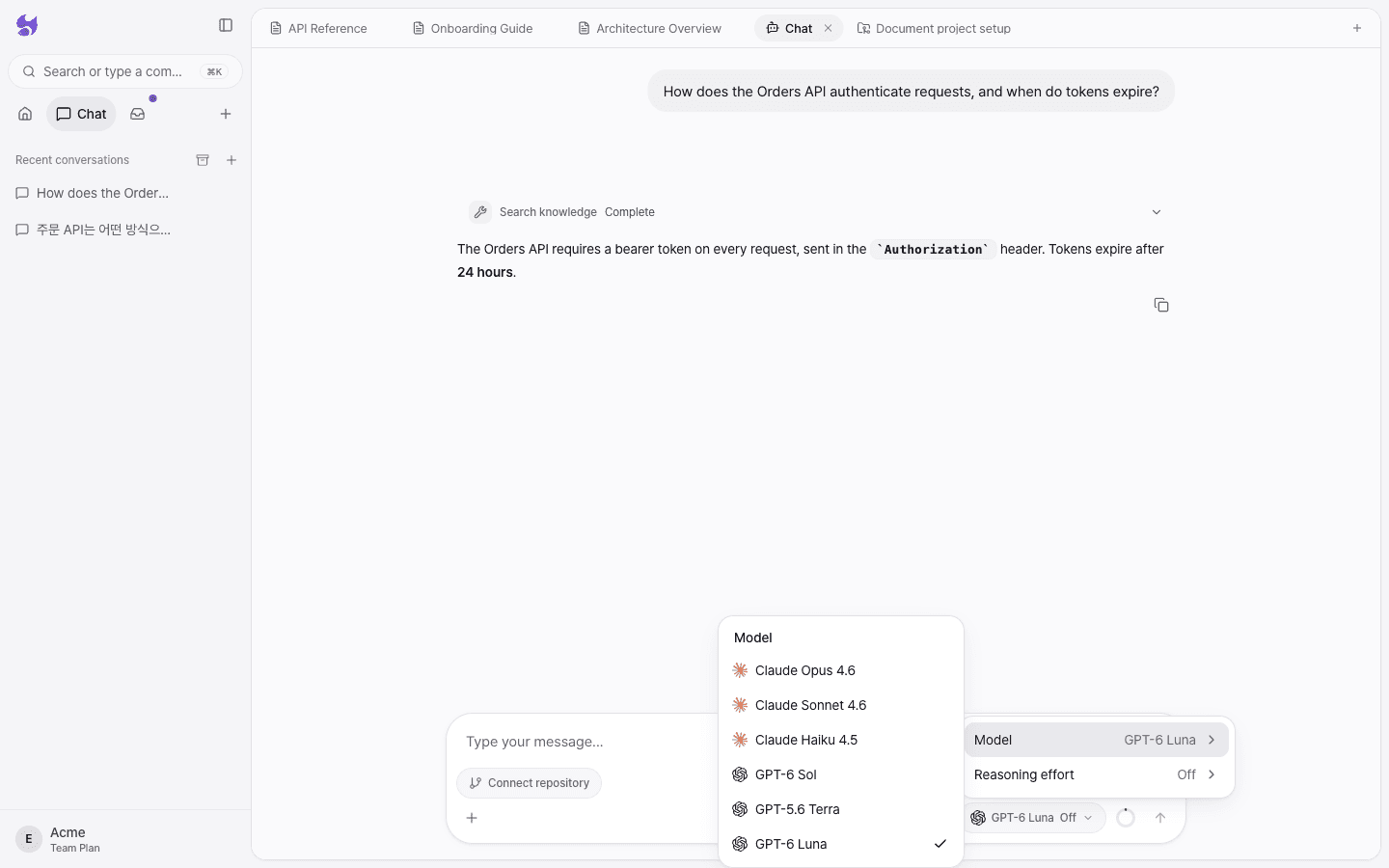
Choose a reasoning effort of Off, Low, Medium, High, Extra, or Max. Higher effort means deeper reasoning, but responses are slower and use more tokens.
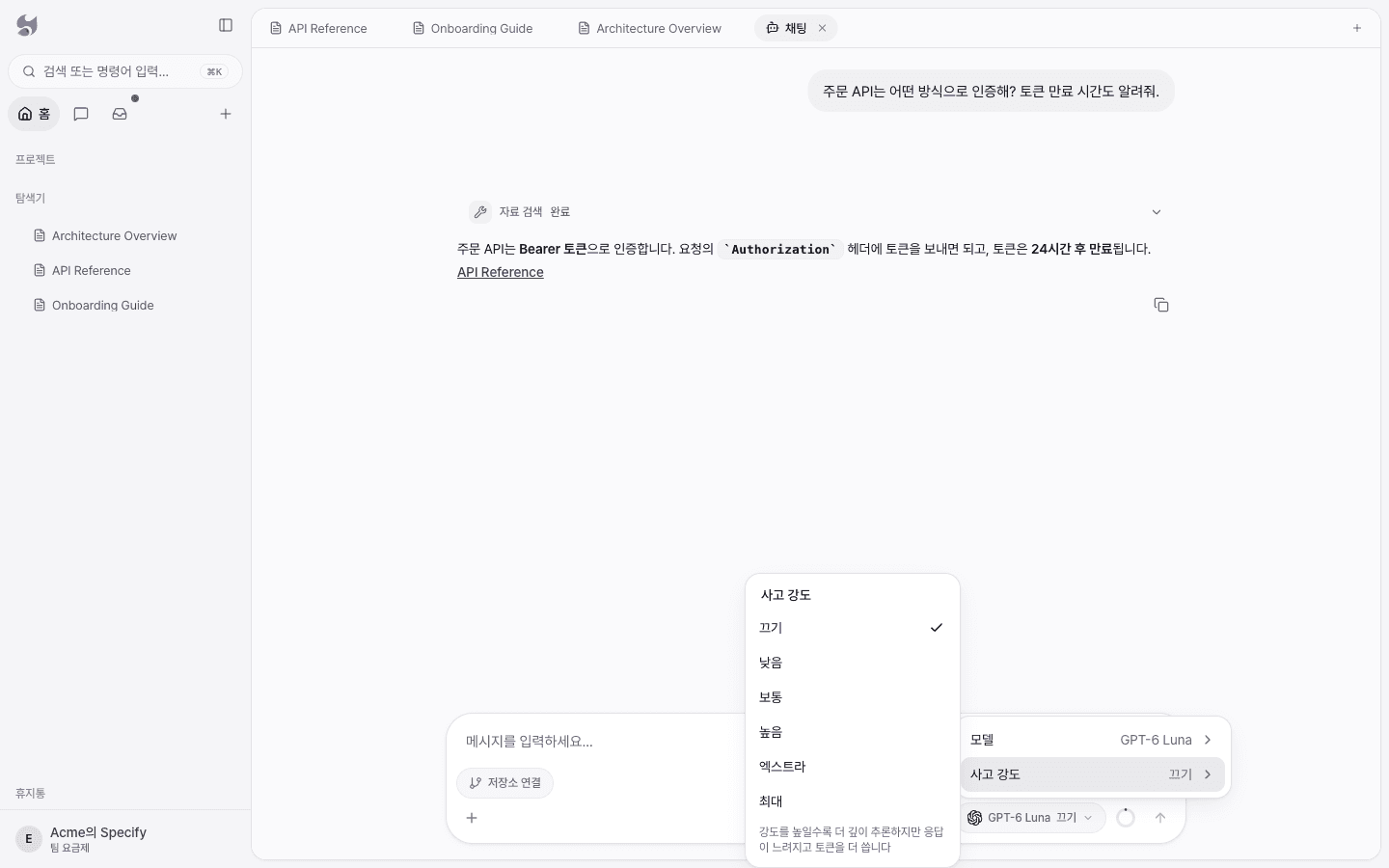
On the Free plan, you can use Claude Haiku 4.5 and GPT-6 Luna, and reasoning effort is fixed at Off. Other models and reasoning effort controls are available starting with the Pro plan. For task-by-task recommendations, see Choosing a model.
Today's briefing
Select Turn on daily briefing on the Today's briefing card in chat to have Specify analyze your workspace every day and recommend what to do next. The daily briefing is available starting with the Pro plan and is managed under Automations in settings.
Use with non-developer colleagues
Colleagues who find technical docs hard to read can ask in everyday language and still get answers they understand. Asking something like "What changes will customers see in this release?" lets them understand where the project stands without pulling in the development team.
Ask from a coding agent
If you use Claude Code or Codex, connect Specify MCP to reference the same team materials inside your editor.