
Writing & AI
Create docs and organize your team's knowledge with block commands, statuses, sharing, and file uploads.
Specify documents are real-time collaborative documents your team edits together. What you write here becomes team knowledge that AI searches, and coding agents read the same documents through MCP.
Create a document
Create a new document in any of these ways.
- Sidebar New (+) → New Document
- The New File button next to the Explorer heading in the sidebar
- New Document in the command palette (⌘K)
When the new document opens as a tab, select the title at the top to rename it, then start writing in the body below.
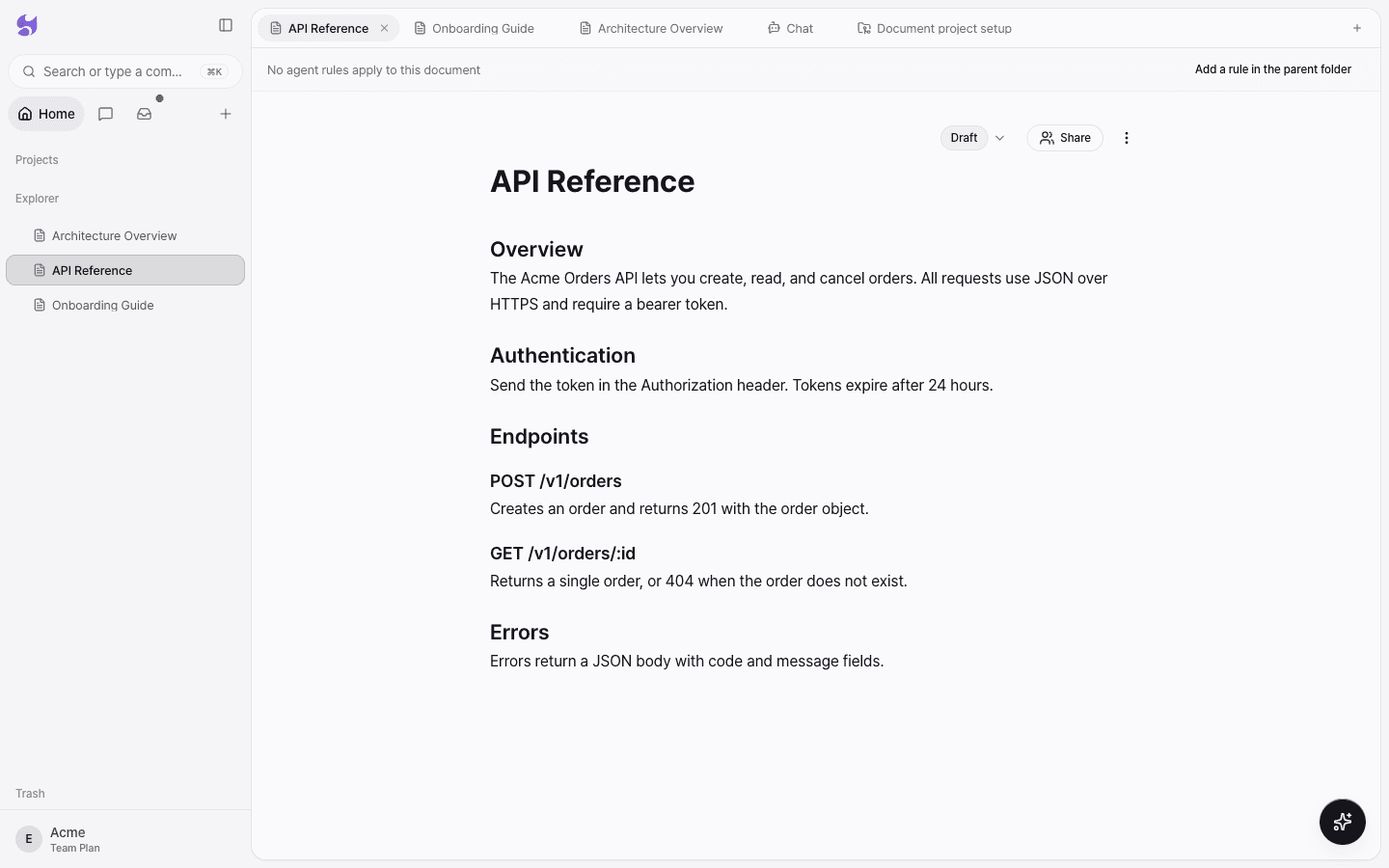
Markdown shortcuts and block commands
When you type Markdown syntax in the body, it turns into formatting right away. For example, typing ## at the start of a line creates a Heading 2.
Type / on an empty line to open the block command menu.
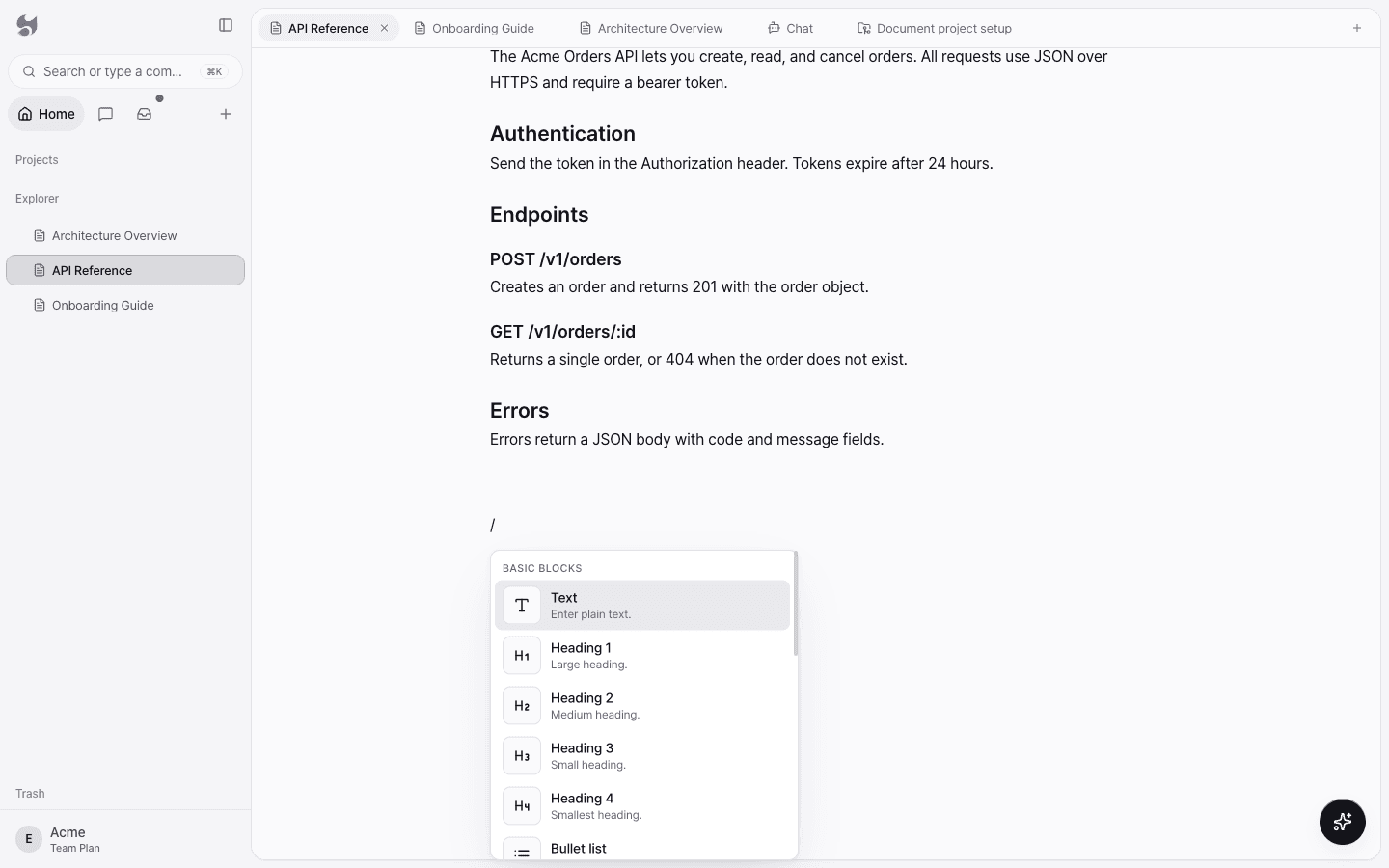
You can add the following blocks from the block menu.
| Category | Blocks |
|---|---|
| Text | Text, Heading 1–4, Quote |
| Lists | Bullet list, Numbered list, To-do list |
| Structure | Divider, Toggle, Callout |
| Media and data | Image, Code block, Table, Board |
From the block menu, you can edit, duplicate, move up or down, or delete a block, and change its text and background colors.
Saving and collaboration
Changes save automatically, and several people can edit the same document at the same time. The save status shows as All changes saved, Saving…, or Not saved. If saving fails, select Retry save.
Document status and details
At the top right of a document are the status button (for example, Draft), Share, and the Document details menu.
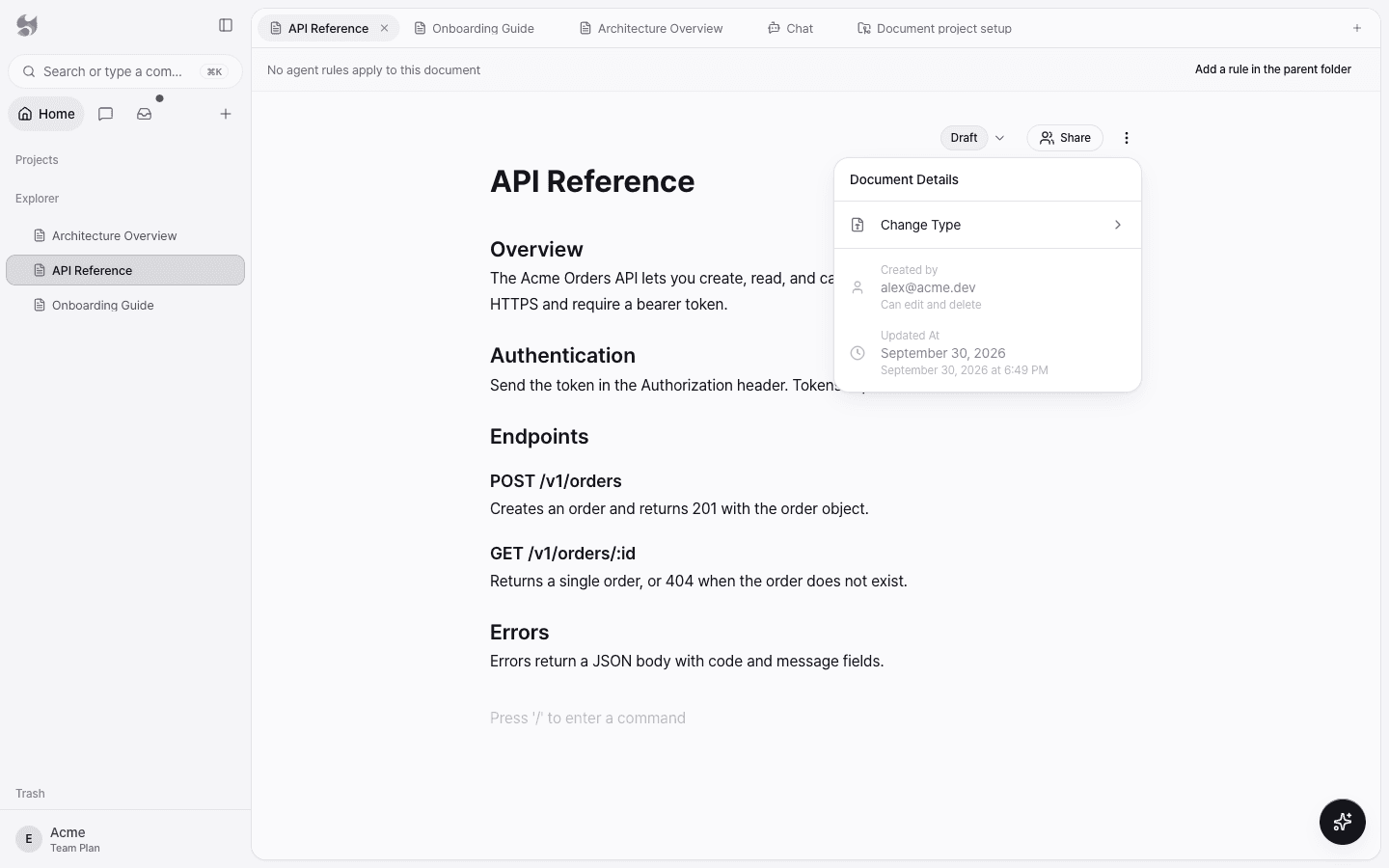
- Change Type: Changes the document to a Page or a Rule. A rule document becomes guidance the agent follows while it works.
- You can see Created by and Updated At.
- For documents in a document project, you can set the Document automation mode per document: Use folder setting, Turn automation off, Suggest changes, or Apply changes automatically. If needed, select Regenerate to create the document again.
The bar at the top of the document shows the agent rules applied to this document, and you can create a folder-level rule with Add a rule in the parent folder.
Sharing
Select Share to manage access to this document.
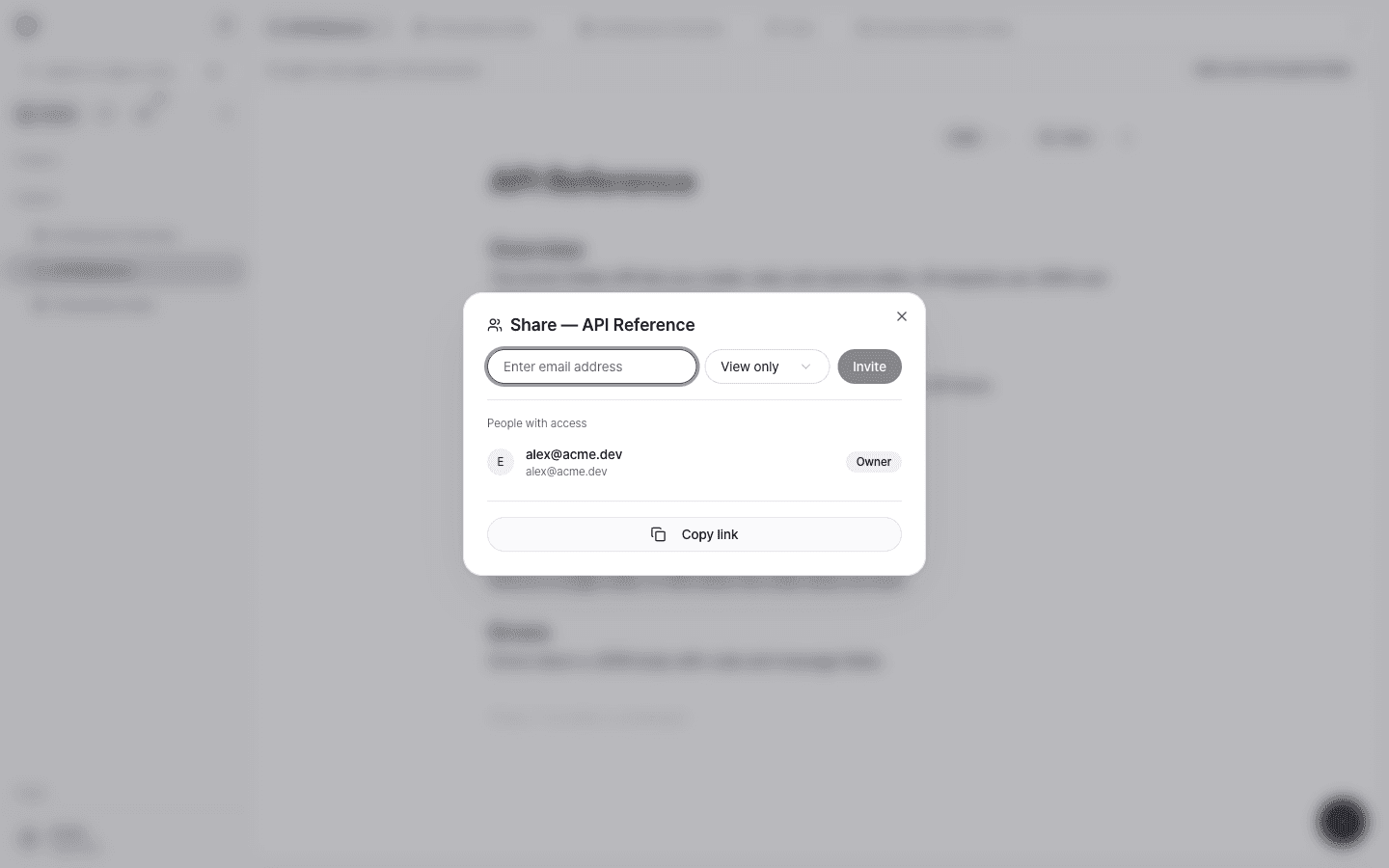
- Enter an email address and choose a permission: View only, Can edit, or Admin.
- Select Invite.
- Use Copy link to share the document's address. People who receive the link also need permission to open the document.
Upload files
Upload files such as PDFs and Word documents as external nodes. The contents of uploaded files become searchable by AI.
- Select sidebar New (+) → Add External Node, or the Upload File button in Explorer.
- You can also drag and drop files onto Explorer.
- Supported formats: PDF, DOCX, DOC, CSV, XLS, XLSX, TXT, MD, HTML
- Maximum size: 50MB
.txt files that contain Korean text may fail to be recognized. When possible, save them as .md before uploading.
For how uploaded files are reflected in AI search, see Workspace RAG.
Organize and delete
- You can move documents by dragging them, and nest folders up to 4 levels deep.
- You can select several documents to move or delete them at once.
- Deleted documents move to Trash, where you can restore them for 30 days.
- Only the author and admins can delete a document.
- Version history is available starting with the Pro plan.