
Automation & Extensions
Connect GitHub, Notion, Slack, Jira, Linear, Google, and custom MCP servers to expand what AI can reference.
Connectors let AI reference information from external services and let you hand some tasks to the agent. Manage connectors under Settings → Tools & skills → Connectors. You can also get there from Skills & connectors in the sidebar account menu.
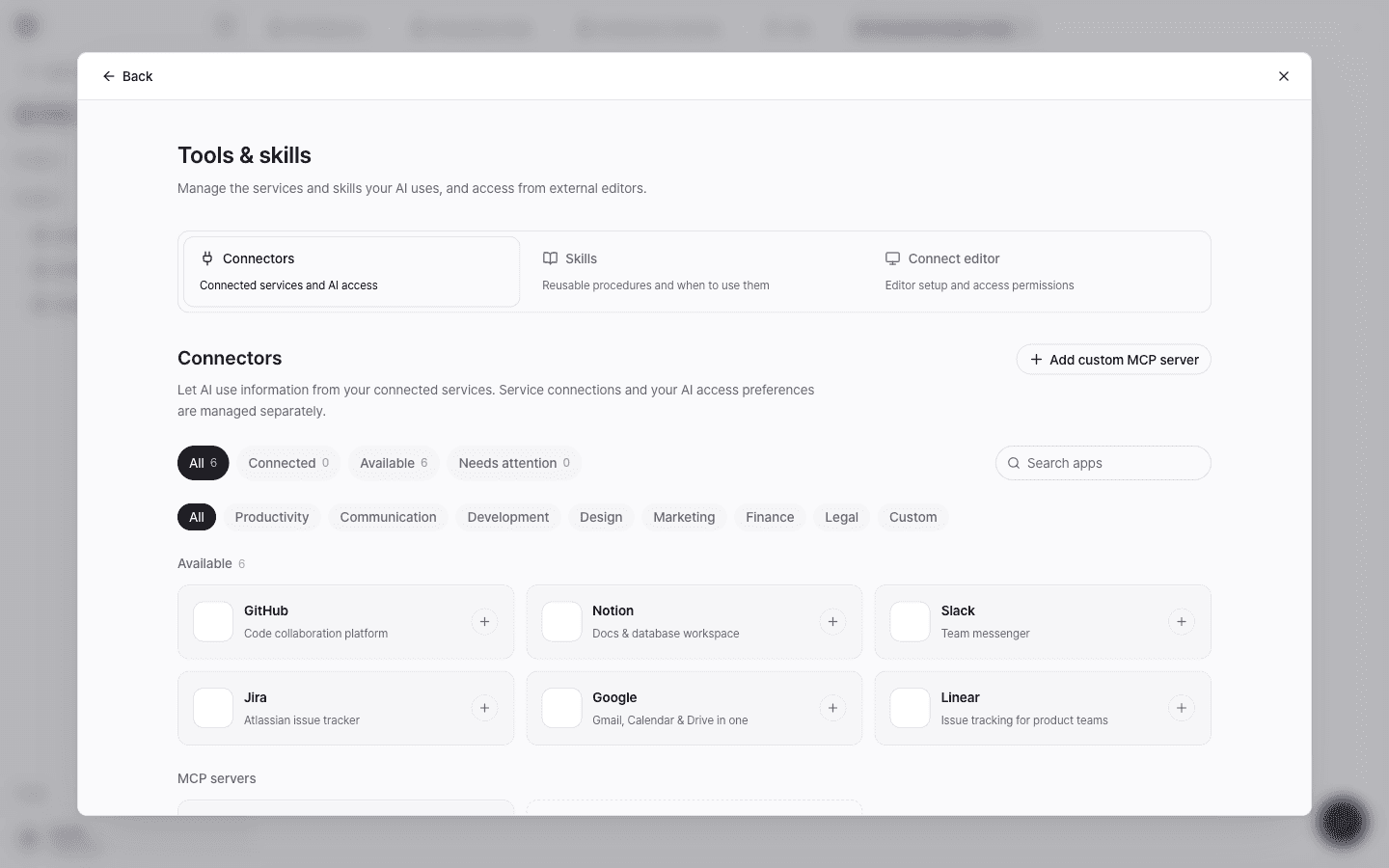
Supported services
| Service | Description |
|---|---|
| GitHub | Code collaboration platform: repository code, issues and PRs, commit history |
| Notion | Docs and database workspace |
| Slack | Team messenger |
| Jira | Atlassian issue tracker |
| Linear | Issue tracking tool |
| Combined Gmail, Calendar, and Drive integration |
Find the connector you want with the All · Connected · Available · Needs attention filters at the top of the list, the categories, and Search apps.
Connect a service
Open the connector
Select the card for the service you want to connect to open its details. Check Data the agent reads and Tasks you can delegate to the agent first.
Connect to the workspace
Select the Connect button under Connect to workspace, then allow access on the service's screen. Once connected, members and the agent can use it together.
Check the status
Once connected, the card changes to Connected. If authentication expires, Reconnect needed appears; select Reconnect to authenticate again.
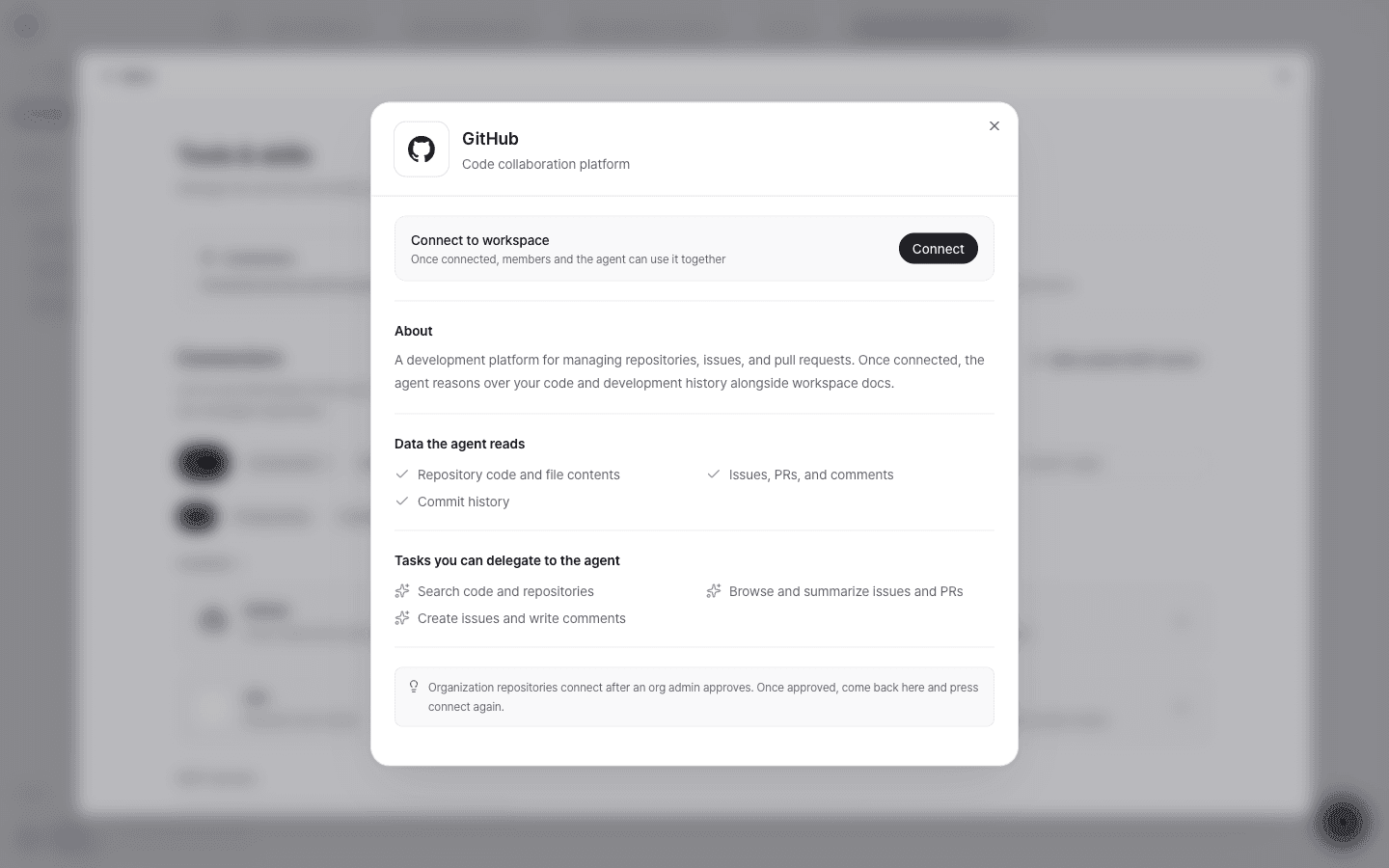
Only workspace admins can connect connectors. Organization GitHub repositories connect after a GitHub organization admin approves.
Slack advanced settings
After you connect Slack, you can specify Channels the agent can search and Channels to exclude from search under Advanced settings. Only messages in public channels are searched.
Custom MCP servers
You can connect tools that aren't in the list directly as MCP servers.
- Select Add custom MCP server.
- Enter the Server URL, Namespace, and Display name.
- Choose an Authentication method and, if needed, enter a Header name and Secret.
- Check the consent that you trust the server, then save.
A custom MCP server becomes an external tool the agent calls. Add only servers you trust, and use a secret with the minimum permissions needed.
Disconnect
You can remove the connection from the connector details. Once removed, the agent no longer reads information from that service.