
Documentation automation
Choose a GitHub source, document types, and an update mode to create a code-based document project.
A document project connects a GitHub repository to a folder in your workspace so the agent can generate code-based docs and keep them in sync.
Before you begin
- Your workspace must have GitHub connected.
- You need Editor, Admin, or Owner permissions. Viewers can't create document projects.
- Document projects are available on the Pro, Max, Team, and Enterprise plans. If you're on the Free plan, see Plans.
Create a project
Select New (+) → Create project in the sidebar to open the Document project setup tab. The wizard has two steps, Source and Documents, and before generation starts you choose the GitHub source, the document types, and the update mode.
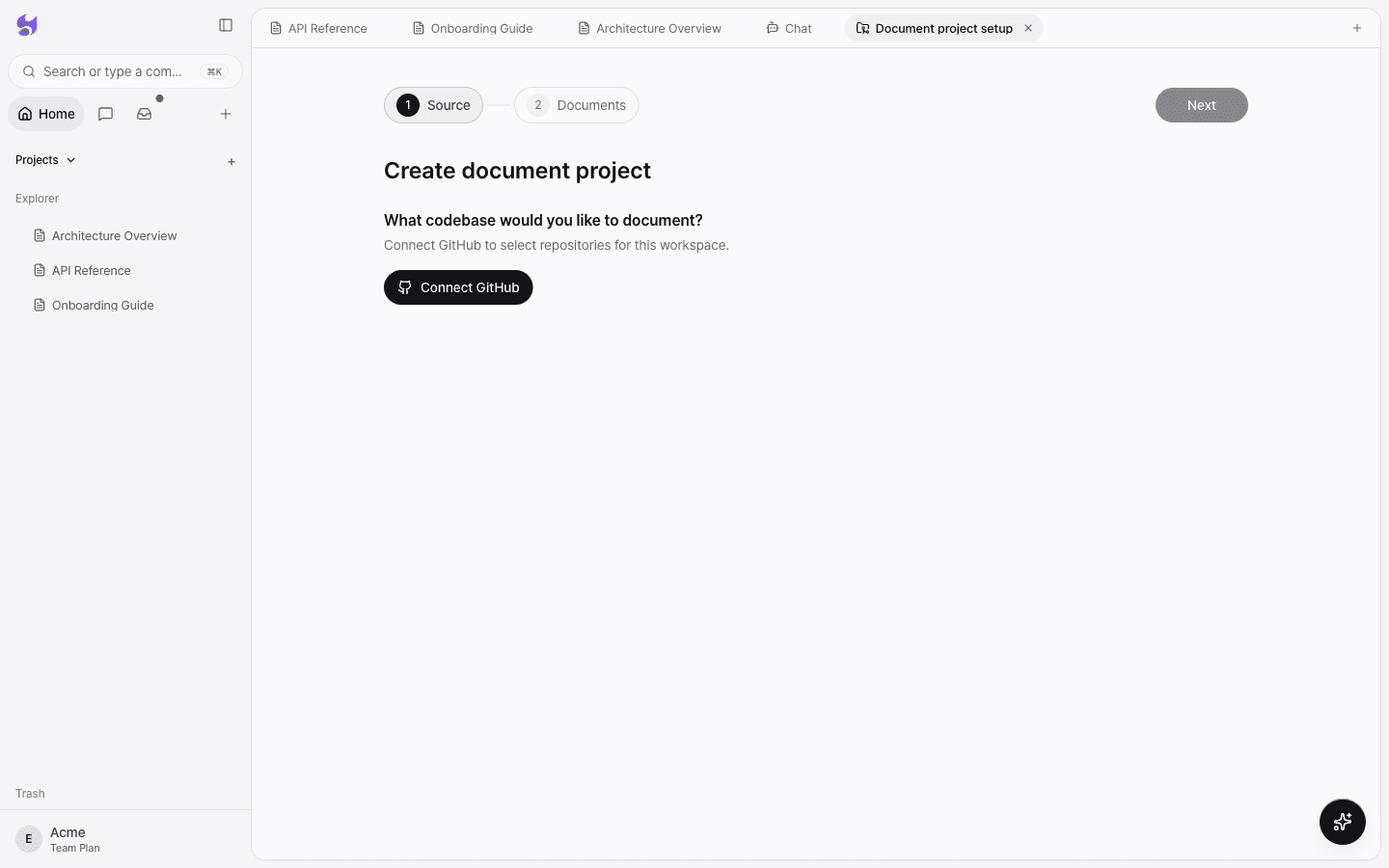
Source: What codebase would you like to document?
Choose a GitHub account, Repository, and Branch. You can search for repositories by name. Once both the repository and branch are selected, Next at the top right becomes available.
Documents: What should the agent create first?
Select one or more document skills for the agent to create first. If no document skills are installed, use Find more in marketplace or Create new. For each skill, use View execution details to see which document it writes and how.
Focus: optional
In Focus for this run (optional) in the same step, write a request that applies only to this run. The more specific you are about the audience, the topics to emphasize, and the level of detail you want, the better the results.
Update mode: What happens when code changes?
Turn on Automatically update on repository changes to keep documents current when code lands on the selected branch. When you're ready, select Create N document types to start generation.
If some of the selected documents use full regeneration, only the incremental documents update automatically when code changes. Full regeneration documents need to be regenerated manually.
What happens during generation
When you start generation, Specify prepares the following.
- Project index: Links the folder, the project record, and the generation task so later updates attach to the same project.
- Automatic update setup: Saves the selected automation mode first so the generated docs can receive proposed changes.
- Change review foundation: Leaves source links in the generated pages so later repository changes can be reviewed against their evidence.
The Inbox keeps tracking the task even if you close the generation screen. Each document's generation status appears as Waiting to start, Writing, Complete, Failed, or Start blocked.
When the agent asks a question
If the agent doesn't have enough information to write a document, it asks a question and waits for your answer. Open the thread and answer to continue generation.
When generation doesn't finish
If the project was created but the first document generation didn't finish, Generation needs attention appears. Check the reason shown, then choose one of the following.
- Try again: Restarts generation with the same settings.
- Change source: Change the repository or branch and start again.
- Close and notify me: Follow the result in the Inbox.
If some document tasks didn't start because you reached a task limit, check the budget and project permissions, then regenerate once running document tasks have finished.
Add documents
After the first run, you can generate additional guides or references in the same project folder. Select the project in the project list and run add document.