
Automation & Extensions
Create and manage automations that have the agent run a prompt on a set schedule.
Automations schedule the agent to run a prompt on a set schedule. Hand off recurring summaries such as "Summarize last week's activity every Monday," and the results arrive in your Inbox.
Automations list
See your workspace's automations under Settings → AI Agent → Automations.
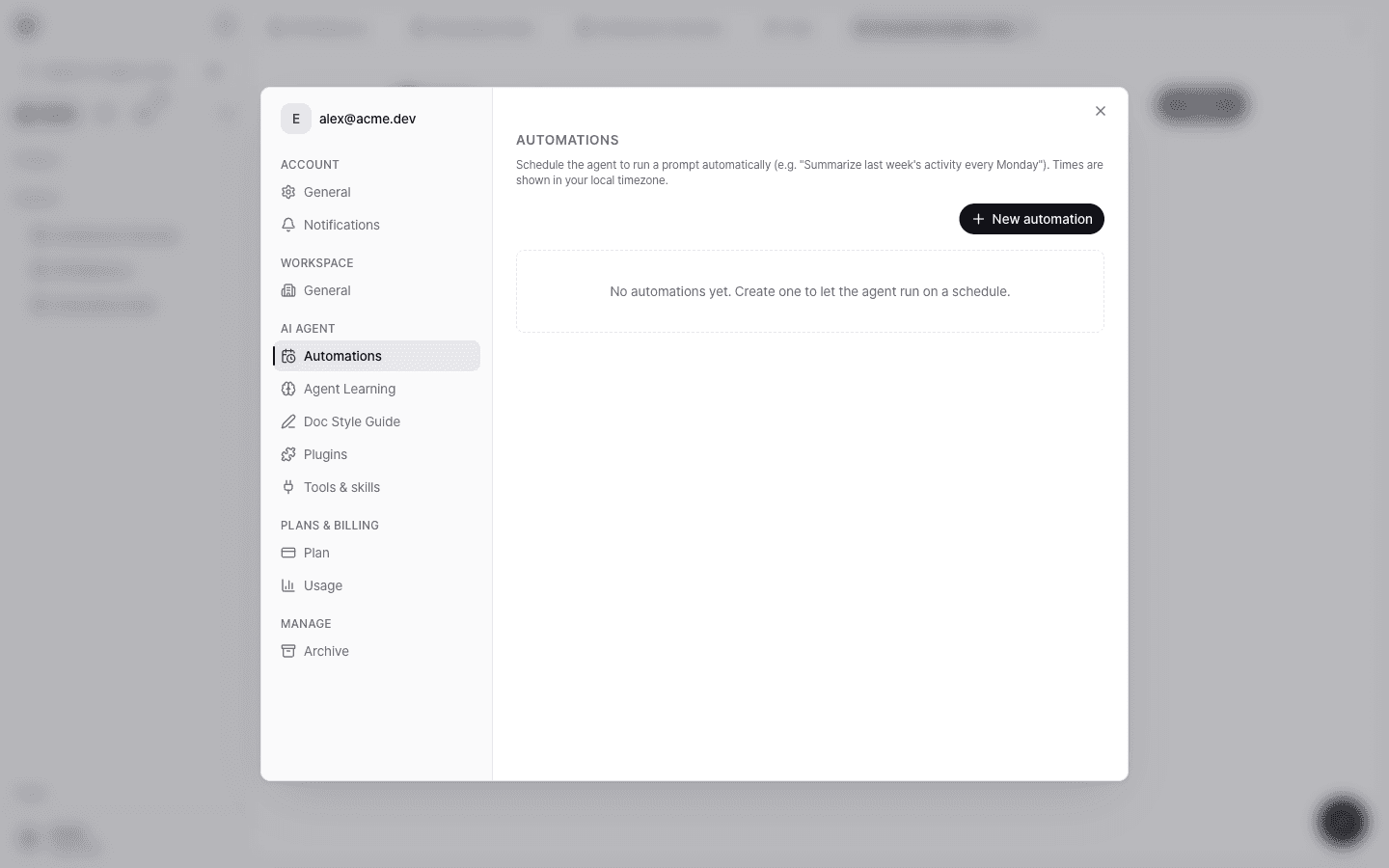
Create an automation
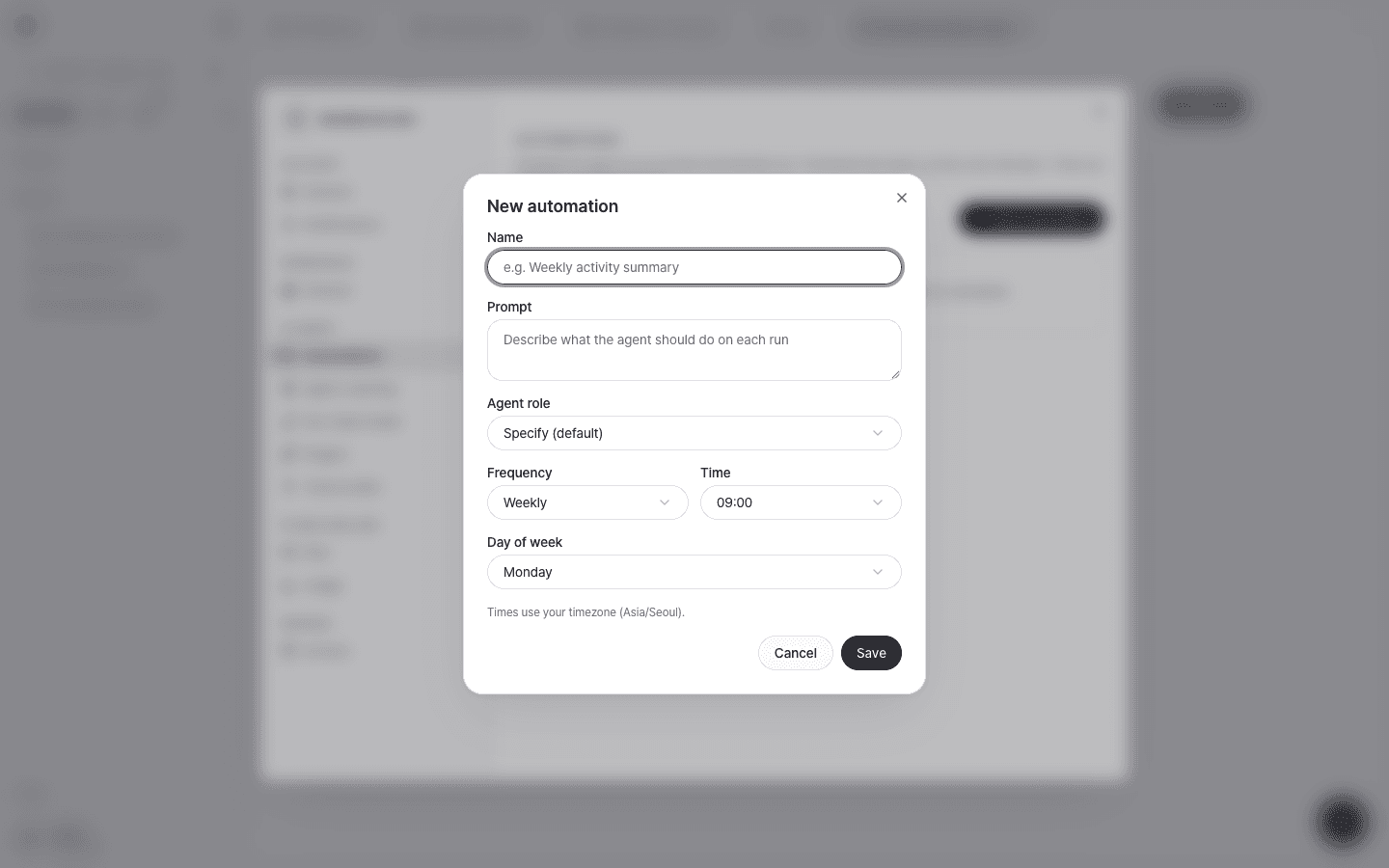
Open a new automation
On the Automations page, select New automation.
Write a name and prompt
In Name, enter a name that identifies the automation (for example, "Weekly activity summary"). In Prompt, describe specifically what the agent should do on each run.
Choose an agent role
In Agent role, choose the role that handles the task. The default is Specify (default).
Set the frequency and time
Choose a Frequency (for example, Weekly), a Time, and, depending on the frequency, a Day of week or Day of month. Times use your local timezone.
Save
Select Save, and the automation runs starting at the next scheduled time.
Example of a good prompt
Find the documents that were created or modified in the workspace over the last 7 days
and summarize what changed in each document in one line.
At the end, recommend 3 documents the team should review, with the reason for each.- State the time period, the targets, and the output format clearly.
- To keep the result as a document, ask for it explicitly, for example "Save the result to a 'Weekly Summary' document."
Check run results
When an automation runs, a task card appears in the Inbox. On the card, check the request, result summary, and progress timeline.
Models and usage
- Automations use the Default AI Model in the Workspace general settings. Depending on the role, a better-suited model may be selected. See Choosing a model.
- Automation runs also use the workspace AI budget. For automations that run often, keep the prompt scope narrow.
Daily briefing
The daily briefing, which you turn on from the Today's briefing card in chat, is also a kind of automation. It analyzes your workspace every day and recommends what to do next, and it's available starting with the Pro plan. To turn it off or delete it, manage it from the automations list.