
Workspace
A walkthrough of the Specify interface, including the sidebar, tabs, search, Inbox, and AI panel, and what each area does, with real screenshots.
The Specify interface has a sidebar on the left, a tab area in the center, and an AI panel on the right that opens when you need it. This page walks through what each area does, using real screenshots.
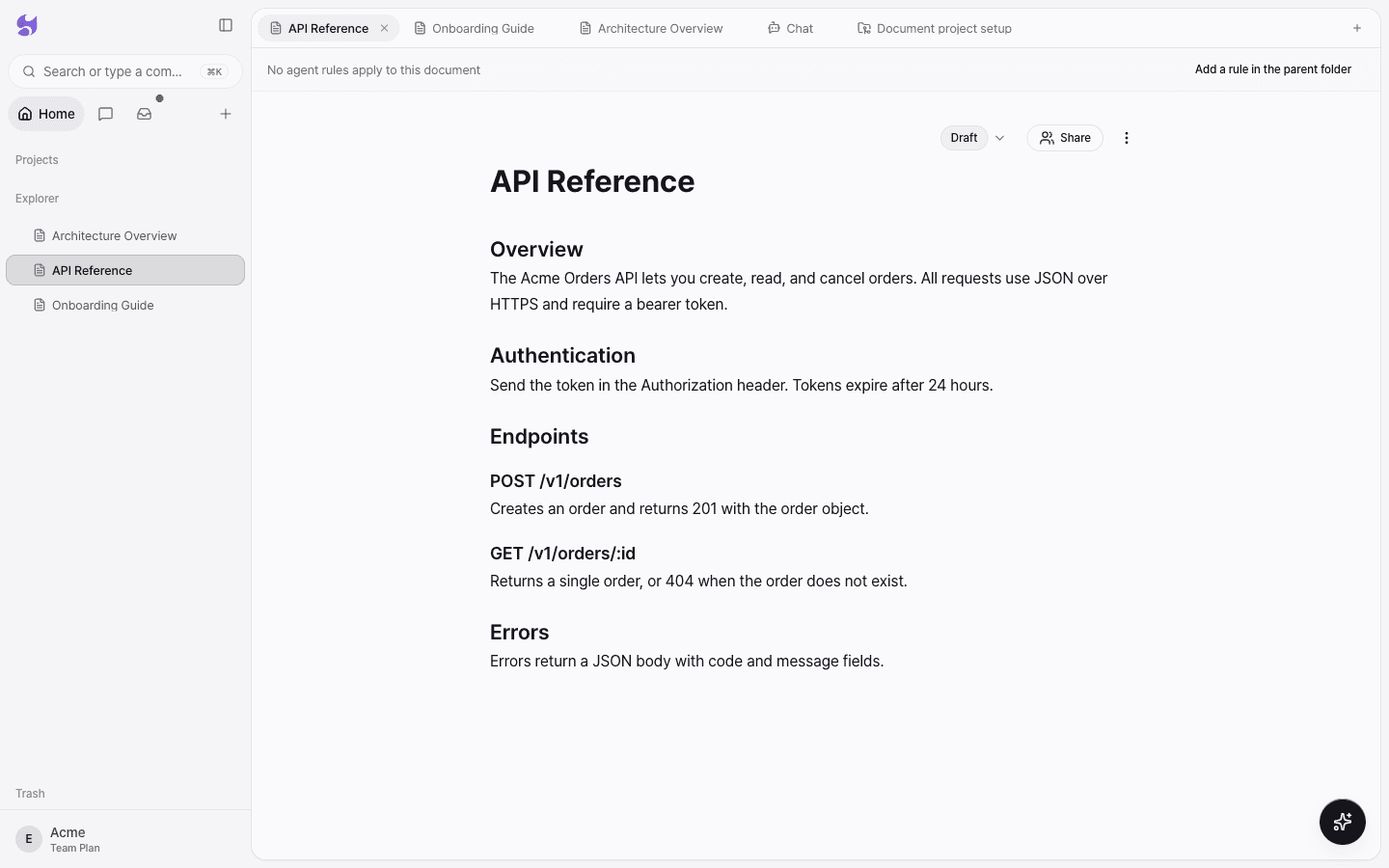
Sidebar
From top to bottom, the sidebar contains the following.
| Area | What it does |
|---|---|
| Search | Opens the command palette to find documents and commands. The shortcut is ⌘K. |
| Home · Chat · Inbox | Switches the sidebar list between the document tree, conversation history, and task list. |
| New (+) | Creates a project, document, or chat, or adds an external node (file). |
| Projects | The list of document projects. Documents connected to GitHub repositories collect here. |
| Explorer | The tree of documents and folders in your workspace. It has New Folder, New File, and Upload File buttons. |
| Trash | Restores deleted documents or deletes them permanently. |
| Account menu | Select the workspace name at the bottom to switch workspaces, invite members, or open Skills & connectors, Settings, or Sign out. |
Create new items
Select the New (+) button in the sidebar to see what you can create.
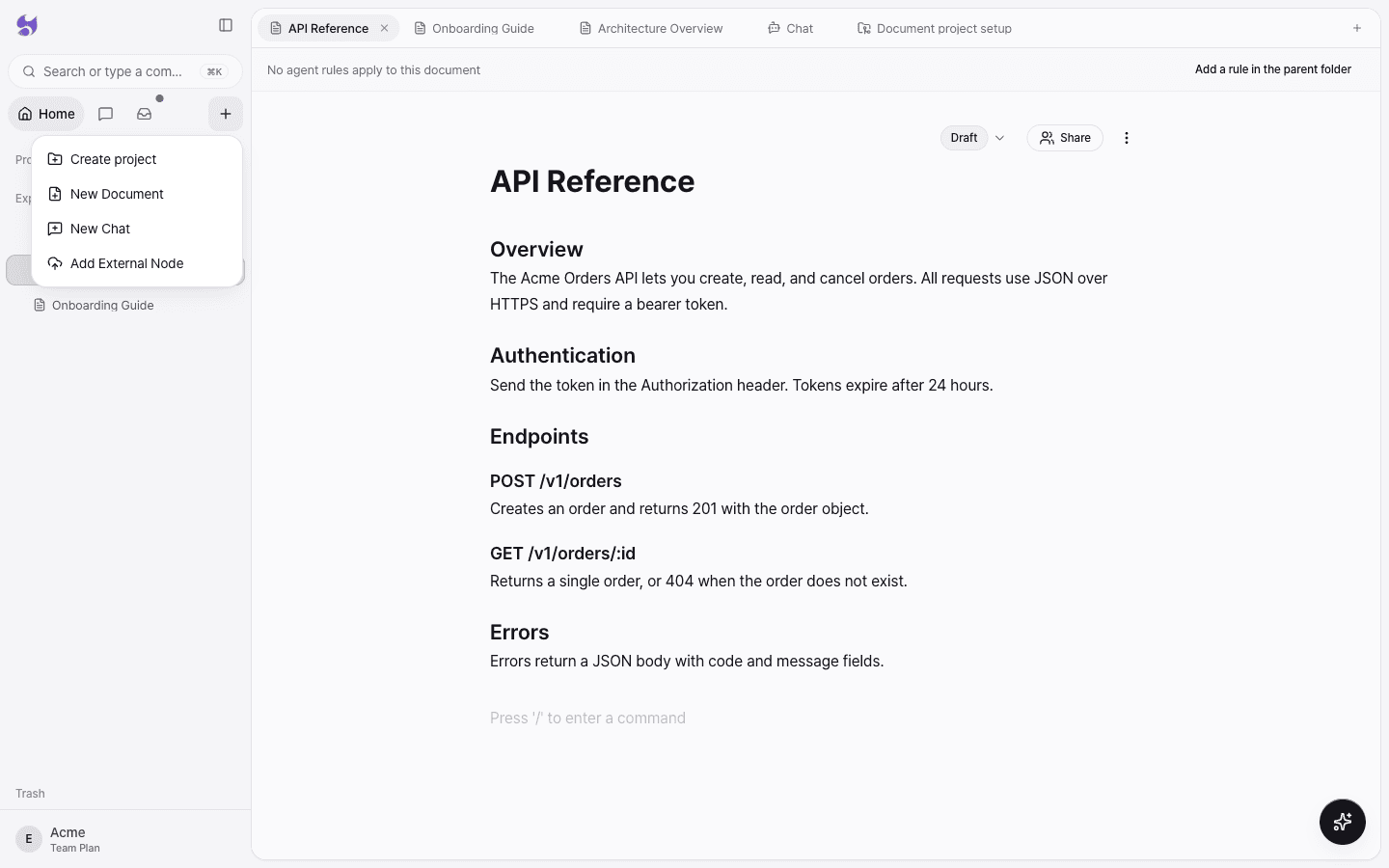
- Create project: Creates a document project that generates docs from a GitHub repository.
- New Document: Creates a blank document you can edit right away. See Write and edit docs.
- New Chat: Starts a new conversation with AI. See AI chat and questions.
- Add External Node: Uploads a file such as a PDF, Word document, or spreadsheet so AI can use it as a reference.
Command palette
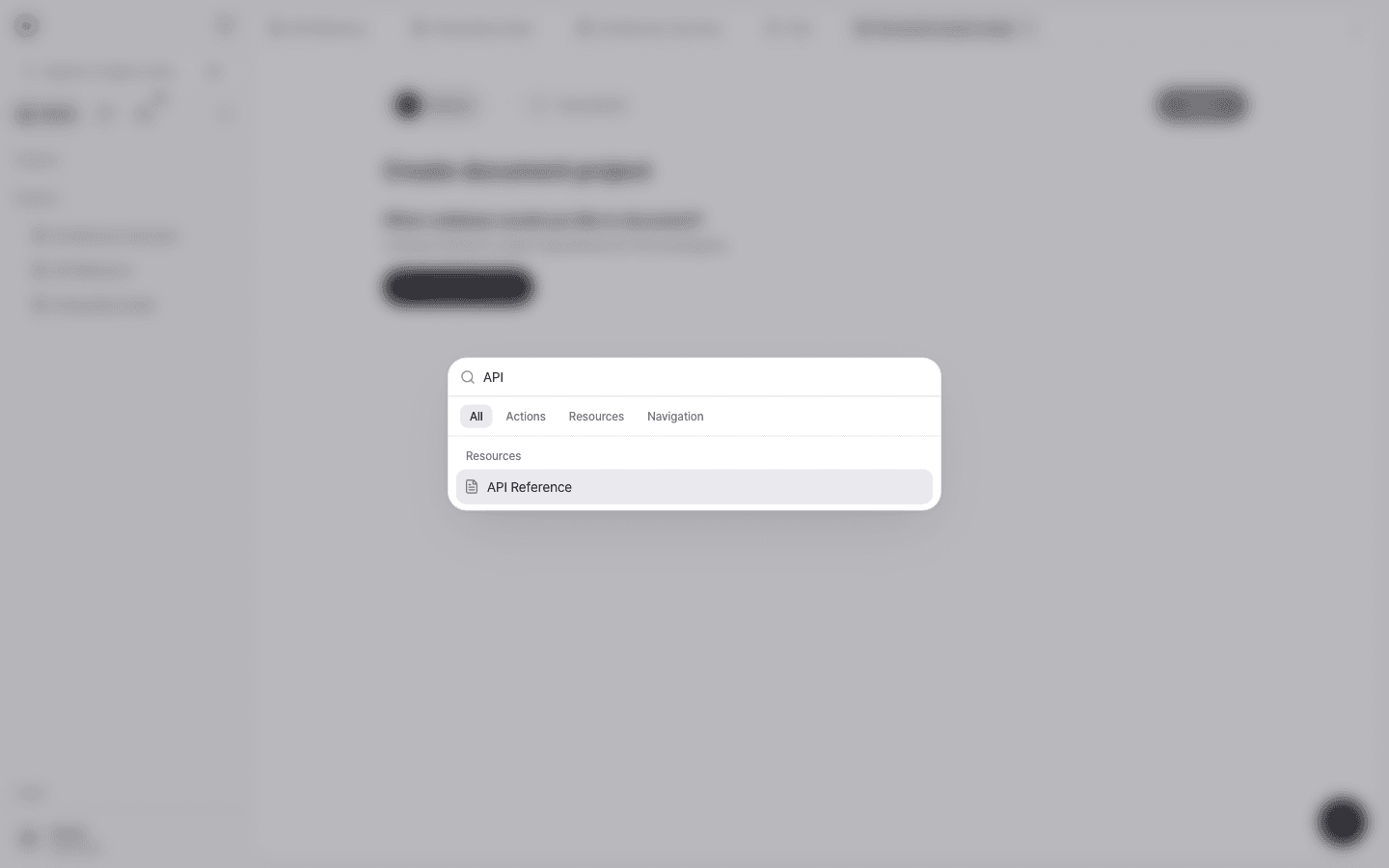
Select Search in the sidebar or press ⌘K to open the command palette. You can jump straight to a document by title or run an action such as creating a new document. Results are split into All, Actions, Resources, and Navigation tabs.
Tab area
Documents, chats, and document project setup all open as tabs in the center area. You can keep several documents open as tabs and move between them, and right-click a tab to choose Close, Close Others, Close to the Right, or Close All.
Chat
When you open a New Chat, a message box appears in the center. You can also start from an example request with the Research, Writing, Analysis, Ideas, and Summary buttons at the top.
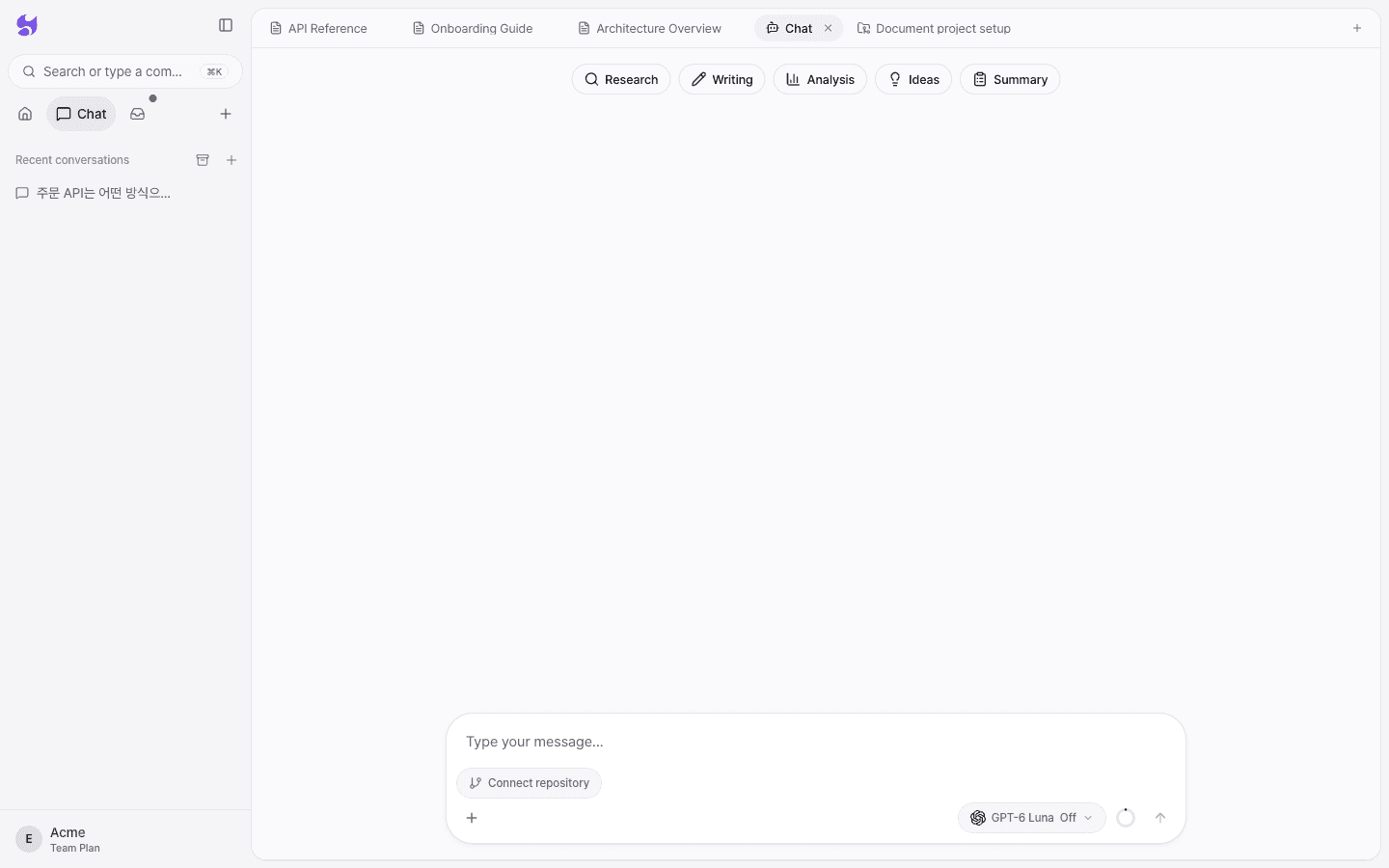
Below the message box are the Connect repository button and the model and reasoning effort picker. For details, see AI chat and questions.
Inbox
The Inbox is where the tasks the agent handles in the background collect. Check the progress and results of long-running tasks such as document generation and automation runs. When a completed task hasn't been reviewed yet, a dot appears on the Inbox icon in the sidebar.
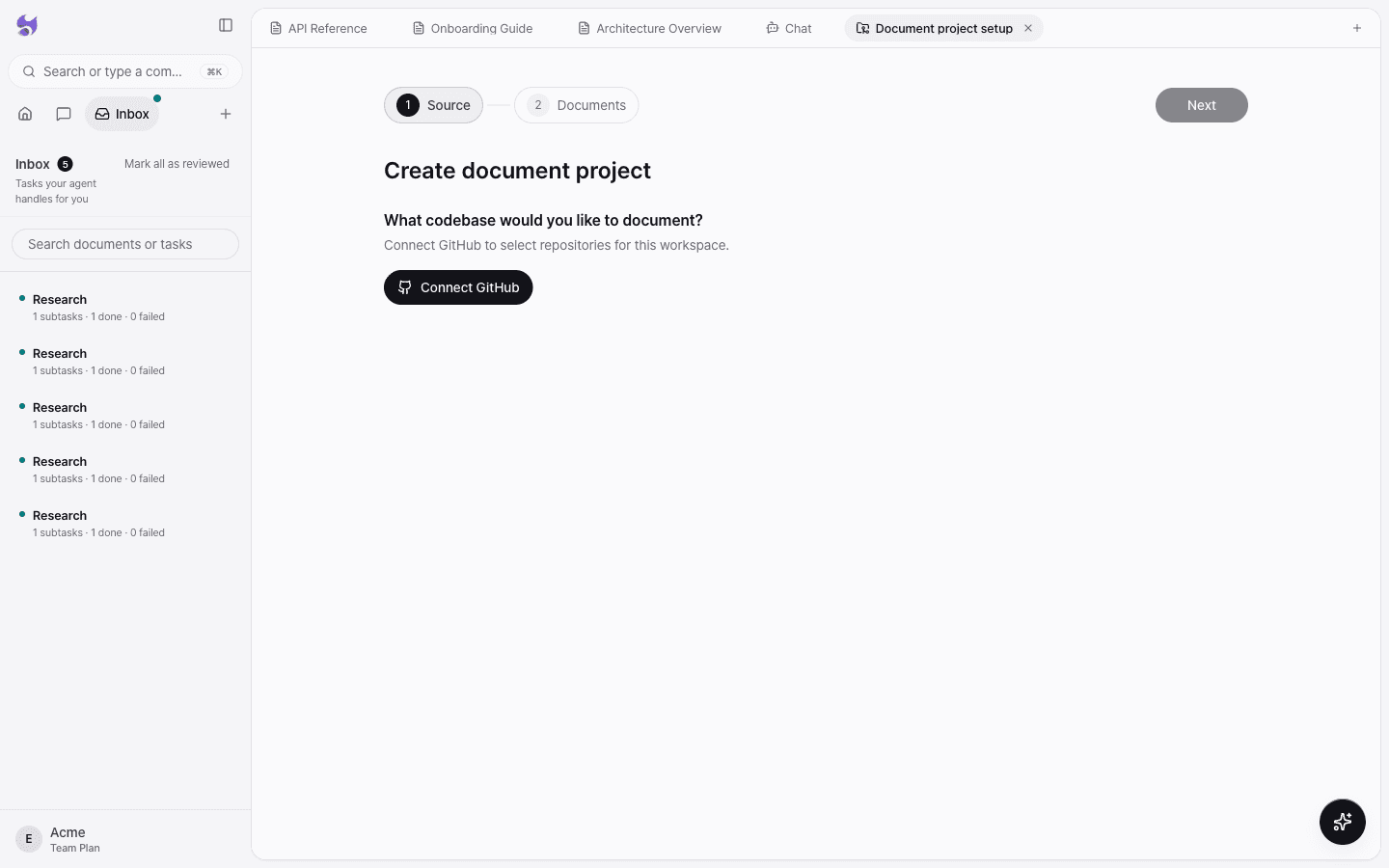
Select a task card to see its Request, Result summary, Progress timeline, and Sub-tasks.